Agents and approvals
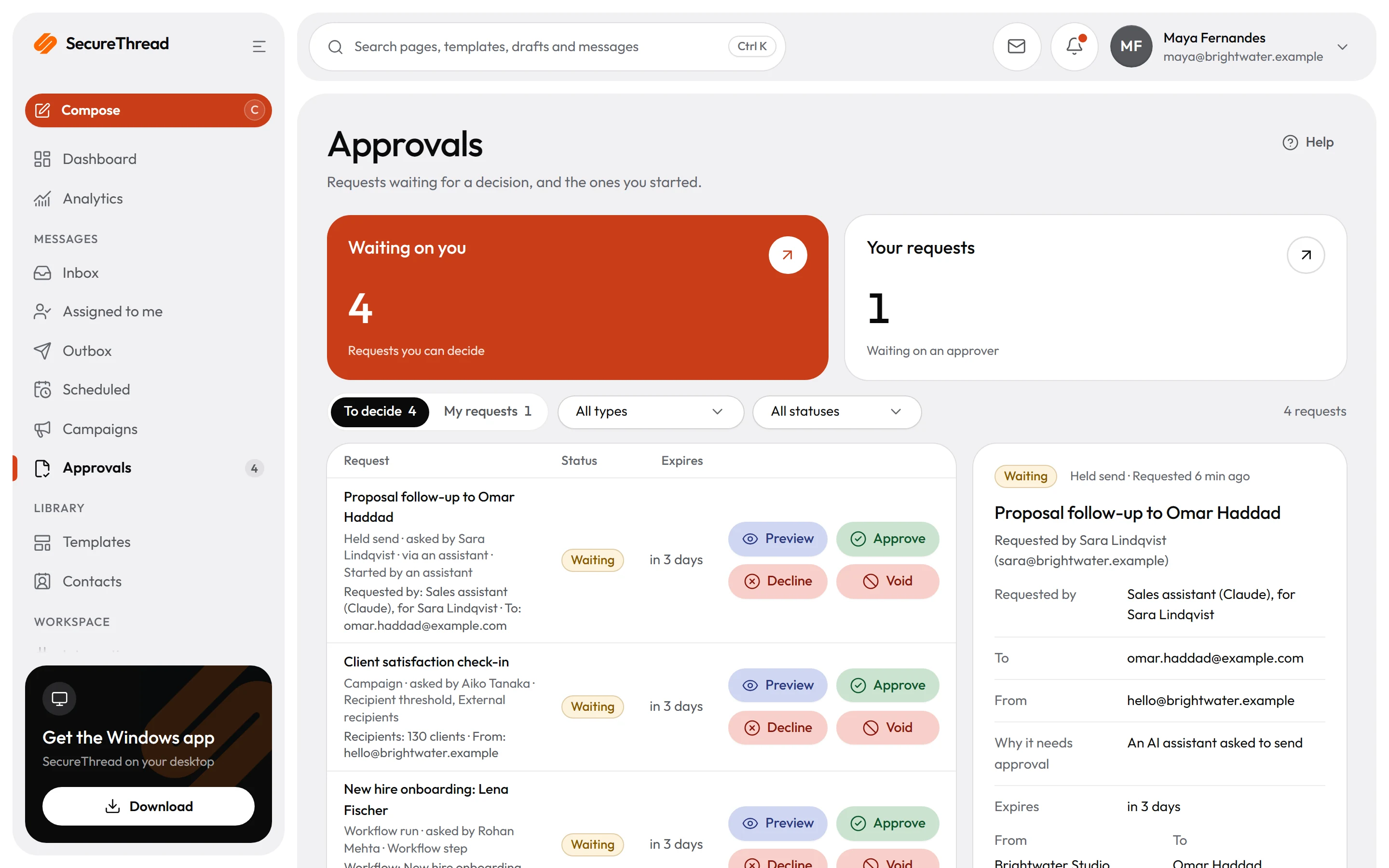
This page explains who approves what, how long an approval waits, what an organization can allow to go out without approval, and how agents are set up. An approval holds an action until a person agrees to it.
Approvals#
These actions can wait for an approval:
- scheduled sends;
- campaigns;
- workflow runs;
- sends and retries held for an administrator, from an account whose sends need an administrator's approval.
Send requests from AI assistants use their own flow. See Send requests from AI assistants.
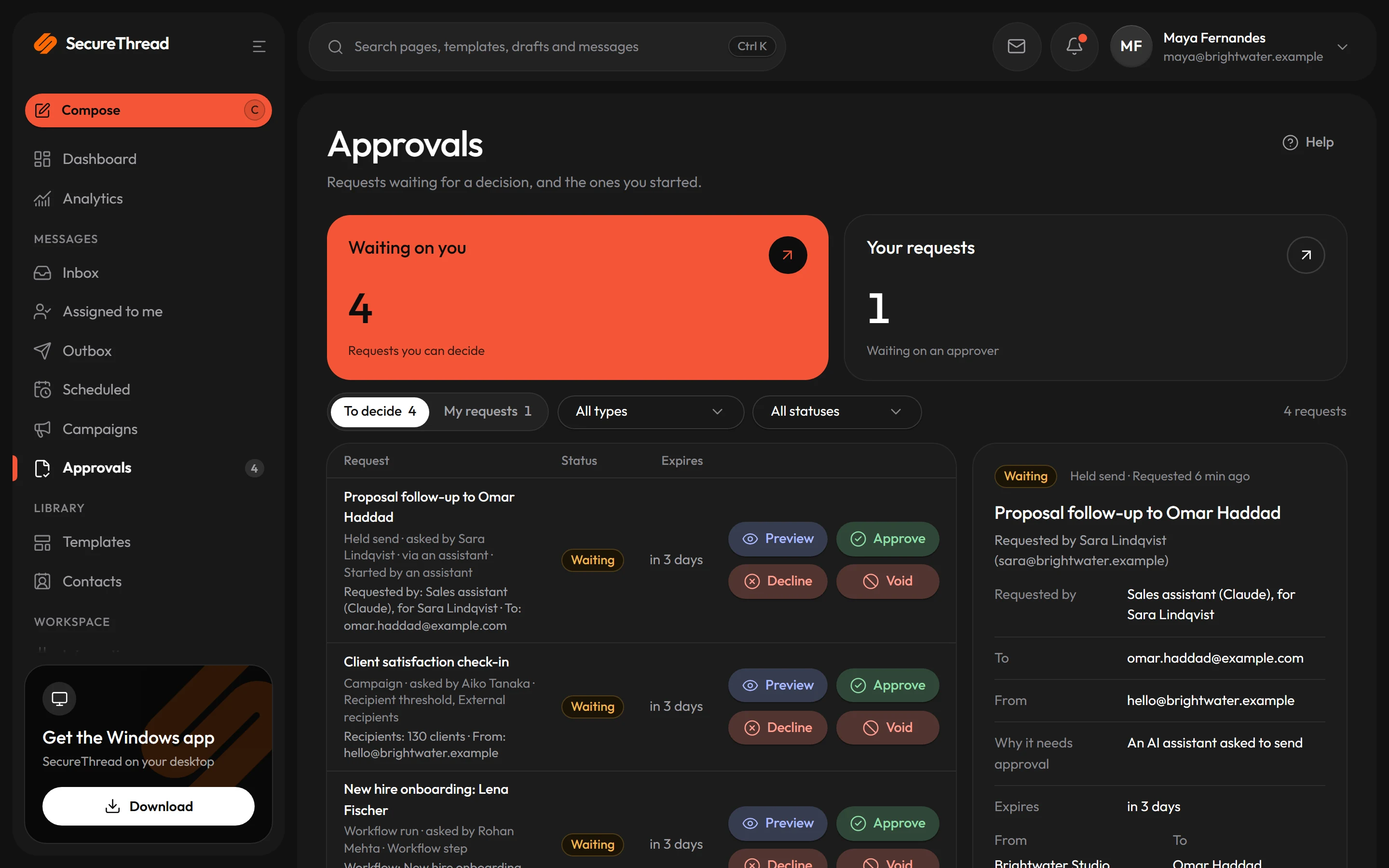
Approvals appear under Messages › Approvals. Each approval has one of these statuses.
Waiting
Meaning
Approved
Meaning
Rejected
Meaning
Withdrawn
Meaning
Expired
Meaning
Voided
Meaning
Who can decide#
- The approval permission lets a person approve, reject or void. Administrators hold it by default. Employees do not, unless an administrator gives it to a role.
- No self-approval. A person who requested, owns or started the work cannot approve it. The organization can allow self-approval under Administration › Sending policy, with the switch People may approve their own work. It is off by default.
- Assistant-started requests. A request that an AI assistant started, with no other reason for approval, can be decided by the person whose assistant started it.
- Administrator-only requests. Some accounts need an administrator's approval for everything they send. An administrator decides these requests. Nobody can approve their own. The message reads "An administrator has to approve mail from this account. You can't approve it yourself."
- More than one approver. The organization can require up to three approvals before a request goes ahead, set under Approvals each request needs in Administration › Sending policy. The default is one.
Expiry#
An approval expires after the period set under Approval requests expire after in Administration › Sending policy. The default is 72 hours, and the limit is 720 hours. An expired approval cannot be approved.
What the approver sees#
The approver sees a title and labelled details. These are fixed when the request is made. Each approval is tied to one version of its item. If the item changes, the pending request is cancelled. A decision made against an older version is refused, so make the request again.
Withdrawing and voiding#
- The requester can Withdraw a pending approval. A withdrawn approval does not go ahead.
- The requester, or anyone with the approval permission, can Void a pending approval. Voiding cancels the scheduled send, campaign, workflow run or queued send that the approval holds. A voided approval can never be approved.
- A message that a mailbox provider has already accepted cannot be recalled.
Send requests from AI assistants#
When an assistant asks to send email, SecureThread holds the email as a send request. The request appears under AI access, and the link the assistant gives you opens it.
- Only the person whose assistant asked can approve the request, with Approve and send. Decline ends it and sends nothing.
- A request expires 24 hours after the assistant asked.
- The assistant can withdraw its own request while it is still waiting.
- The approval page lists why the request needs approval. The reasons are:
- Your organization asks a person to approve every email an AI assistant prepares.
- It goes to more people than your organization lets an assistant send to without approval.
- It goes to people outside your organization.
- It goes to a contact group.
- It would be sent from a mailbox you don't own.
- Its content isn't the current published version of a shared template a reviewer approved.
- It has attachments.
- The assistant wrote or changed the content instead of using a template exactly as published.
- It has links that hide where they go: a shortened link, a link to a bare IP address, or link text that shows a different site. Check the links before you approve.
Automatic sending for assistants#
By default, every email an assistant prepares waits for approval. An administrator can let some low-risk emails go out without approval. The settings are under Administration › AI access, in the section Sending without approval. The switch Allow automatic sending is off by default.
When it is on, an email goes out without approval only if every one of these holds:
- the email comes straight from a saved template that is the current published version of a shared template a reviewer approved, and the assistant only fills in the template's variables;
- the assistant wrote no subject, preview text or body of its own;
- the email is sent from the person's own mailbox;
- the email has no attachments and no contact groups;
- the email has no more recipients than Recipients per email allows. The range is 1 to 50, and the default is 1. To, Cc and Bcc count together;
- if Only to people in the organization is on (the default), every recipient is on an employee domain. Set the employee domains under Administration › Organization;
- if Only from reviewed shared templates is on (the default), the template is a reviewed one;
- the assistant has the Send email access level.
Variables can contain any text. Allow automatic sending only if your templates' variables are safe to fill in freely. The setting applies to the next email an assistant asks to send. Automatic sending does not change the approval rules for scheduled sends or workflow runs.
Agents#
An agent is a named identity for an AI assistant. Each agent has:
- a name of 2 to 60 characters, and an optional description of up to 300 characters;
- an owner, the person accountable for the agent. The agent's sends go from mailboxes its owner may use;
- a policy, which can only narrow what the organization allows;
- credentials: the assistant connections assigned to the agent. Assign one from the agent's page after the assistant is connected. The consent page does not ask for an agent; connect the assistant first;
- a status: Active, Paused or Revoked.
The statuses mean:
- Active: the agent may ask to send, within its policy.
- Paused: every request it makes is refused, and its queued mail waits, until someone resumes it.
- Revoked: its credentials are revoked. It can never act again.
Create an agent#
Open Workspace › Agents and choose New agent. A new agent starts with Every send needs approval. The Agents page shows how many agents your plan allows under Agents on your plan.
Autonomy#
Each agent has one of four autonomy modes.
Drafts only
What the agent may do
Every send needs approval
What the agent may do
Sends within policy, tells its owner
What the agent may do
Sends within policy
What the agent may do
The organization's own rules still apply on top of an agent's mode, including the automatic sending rules above, the sandbox and the verified domain rule.
Policy#
Edit an agent's policy to narrow what it may send:
- Allowed recipients: domains and addresses, up to 200 entries in all. If the list is set, the agent may only send to them.
- Daily send limit: the number of messages the agent may have accepted or queued in any rolling 24 hours. Empty means the agent has no limit of its own.
- Mailboxes: the mailboxes the agent may send from. Empty means any mailbox its owner may use.
- Templates: the templates the agent may send from. Empty means any template its owner may use.
- Require a published template: the content must come from a published shared template.
A policy can only narrow the organization's rules. It cannot widen them.
Pausing, resuming and revoking#
Pausing, resuming and revoking an agent each ask for a short reason, of 3 to 500 characters.
- Pause agent stops the agent at once. Resuming it lets it act again. Pausing does not release a scheduled send that is waiting for approval.
- Revoke agent is permanent. Its credentials are revoked, and the agent can never act again. The confirmation reads "This is permanent."
Activity#
Each agent has an activity list, newest first. It shows the send requests the agent made, with their status and whether automatic approval applied, the messages it queued or had accepted, and the refusals with a plain reason. The list shows message details, never message bodies.