Sending domains and DNS
A receiving mail server decides whether to trust a message partly from the DNS records of the domain in its From address. These records show that your mail is authorized to come from that domain. This page explains what to publish, how SecureThread checks it, and what each result means.
Why the records matter#
- SPF lists the servers that may send mail for your domain.
- DKIM signs each message with a key published in your DNS. The receiving server checks the signature against that key.
- DMARC tells receiving servers what to do with mail that fails the checks, and where to send reports. A message passes DMARC when SPF or DKIM passes and the domain that passed matches the From domain. That match is called alignment. DKIM alignment survives forwarding. SPF alignment often does not.
Large mailbox providers, including Google and Yahoo, expect senders to authenticate their mail with these records. Their own help pages set out the current requirements.
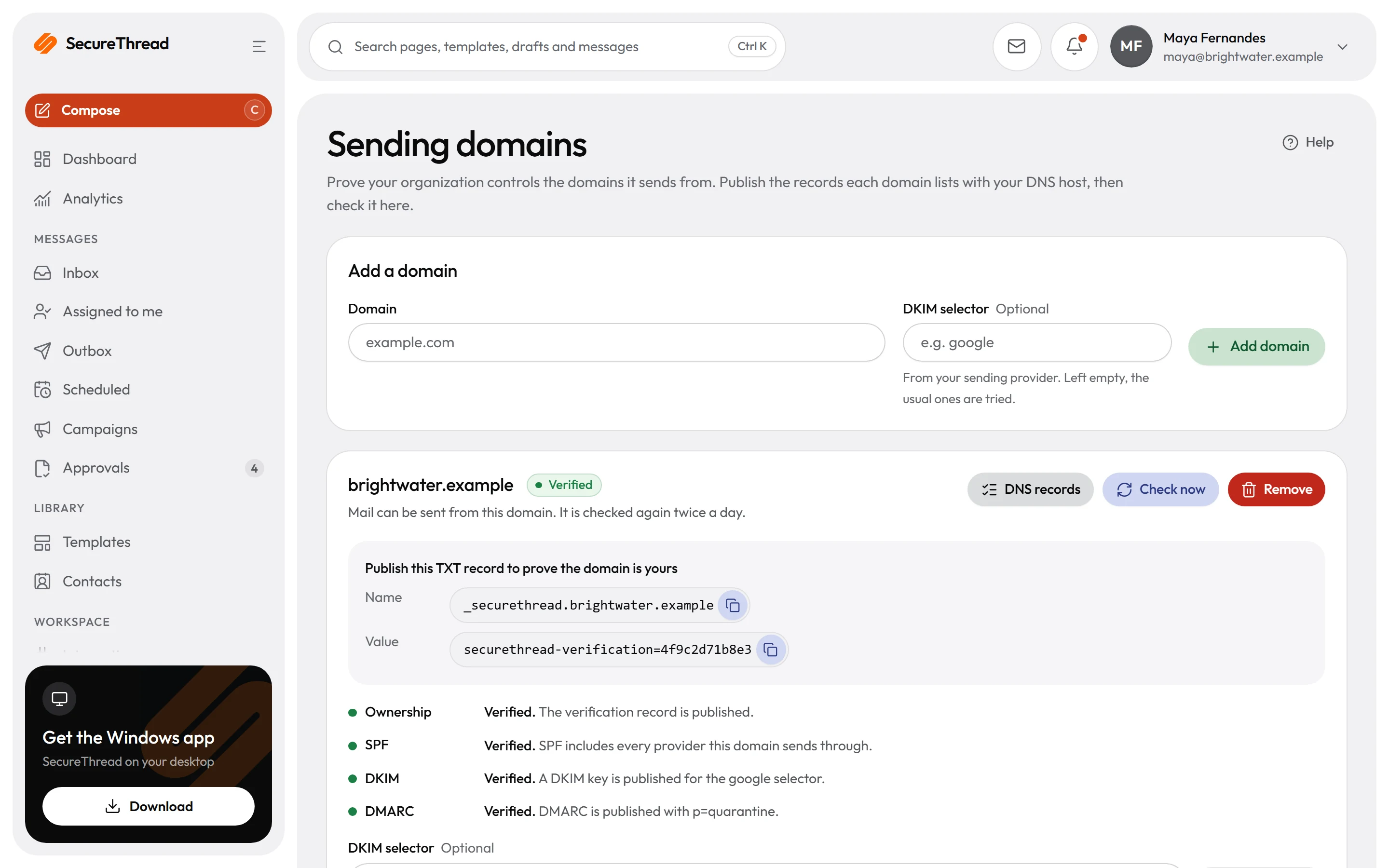
SecureThread counts a domain as verified when four checks pass: the ownership record, SPF, DKIM and DMARC. A DMARC record with p=none counts as published, with a warning.
Add a domain#
- Open Administration › Sending domains and choose Add a domain.
- Enter the domain, such as
example.com. Enter the domain only, with nowww, no@and no address. - If your sending provider gave you a DKIM selector, enter it. Leave the field empty to try the usual selectors.
- Choose Add domain. While the domain is not verified, its card lists the records to publish. Once it is verified, choose DNS records on the card to show them.
A workspace can have up to 25 sending domains. Adding a domain that is already on the list is refused with "This domain is already on the list." Personal mail domains such as gmail.com and outlook.com belong to their providers. Your organization cannot verify them.
The records#
The app works out each record for your domain. Replace the placeholders with the values the app shows. The values for DKIM and some SPF records come from your sending provider.
Ownership
Type
Name (host)
_securethreadValue
securethread-verification=<token shown in the app>SPF
Type
Name (host)
@ (the domain itself)Value
v=spf1, names your provider with include:, and ends ~allDKIM
Type
Name (host)
<selector>._domainkeyValue
DMARC
Type
Name (host)
_dmarcValue
v=DMARC1; p=none; rua=mailto:<an address you read>- Ownership proves that your organization controls the domain. Keep it published. SecureThread checks it again on a schedule.
- SPF: a domain has exactly one SPF record. Two SPF records are an error. Put every sending service into that one record. A record may make at most 10 DNS lookups, and each
include:counts, including the includes inside it. - DKIM: your sending provider generates the key and names the selector. Microsoft 365 uses two CNAME records,
selector1._domainkeyandselector2._domainkey, which point to the values its portal shows. - DMARC: start with
p=noneand an address you read inrua. Move top=quarantineorp=rejectonce reports show that your mail passes.
SPF and DKIM values for common providers#
The table lists the values the app used when this page was written. Your provider's own dashboard is the authority, and the setup guide in the app shows the current values for the providers you use.
Google Workspace
SPF mechanism
include:_spf.google.comDKIM
google. Generate the key in the Google Admin console under Apps › Google Workspace › Gmail › Authenticate email.Microsoft 365
SPF mechanism
include:spf.protection.outlook.comDKIM
selector1 and selector2. Copy the targets from the Microsoft Defender portal under Email & collaboration › Policies & rules › Threat policies › Email authentication settings › DKIM.Hostinger Email
SPF mechanism
include:_spf.mail.hostinger.comDKIM
Titan Email
SPF mechanism
include:spf.titan.emailDKIM
Fastmail
SPF mechanism
include:spf.messagingengine.comDKIM
fm1, fm2 and fm3, from Settings › Domains.Proton Mail
SPF mechanism
include:_spf.protonmail.chDKIM
protonmail, protonmail2 and protonmail3.Rackspace Email
SPF mechanism
include:emailsrvr.comDKIM
Namecheap Private Email
SPF mechanism
include:spf.privateemail.comDKIM
GoDaddy Email
SPF mechanism
include:secureserver.netDKIM
Mailgun
SPF mechanism
include:mailgun.orgDKIM
Mailjet
SPF mechanism
include:spf.mailjet.comDKIM
Mailchimp Transactional (Mandrill)
SPF mechanism
include:spf.mandrillapp.comDKIM
For other sending services, the setup guide in the app names where to copy each value from.
Add the records at your DNS host#
Your DNS host is where the domain's DNS records are managed. It can differ from your mail provider.
- Sign in to the DNS host and open the DNS records for the domain.
- Add a record with the type the app shows, TXT or CNAME.
- In the Name or Host field, enter only the part before your domain. Enter
_securethread, not_securethread.example.com. For the SPF record, enter@if the host uses it for the domain itself. Most hosts add the domain for you. If you type the full name, the host adds the domain again and the record lands at the wrong name. The app reports this as a doubled name. - Paste the value exactly as shown. Do not add quotation marks unless your host requires them around the whole value. Some hosts split long TXT values into pieces. That is normal.
- Save the record. Then return to SecureThread and choose Check now.
Domain statuses#
Not verified yet
Meaning
Verified
Meaning
Failing checks
Meaning
Record results#
Each check shows one of these results.
Found
Meaning
Found, with a warning
Meaning
p=none, receiving servers only report and do not act.Not found yet
Meaning
Wrong value
Meaning
DNS didn't answer
Meaning
Messages and fixes#
Use this table to match a message with its fix. <domain> stands for your domain.
Ownership
Message in the app
_securethread.<domain> with the value shown.Meaning
Fix
Ownership
Message in the app
_securethread.<domain> has a TXT record, but not this workspace's value.Meaning
Fix
Ownership
Message in the app
_securethread.<domain>.Meaning
Fix
SPF
Message in the app
<domain>. Publish the one your sending provider gives you.Meaning
Fix
SPF
Message in the app
<domain> has N SPF records; receivers treat that as an error. Merge them into one.Meaning
Fix
SPF
Message in the app
Meaning
Fix
SPF
Message in the app
Meaning
+all allows any server to send.Fix
+all to ~all, or to -all once every sender is listed.SPF
Message in the app
Meaning
Fix
SPF
Message in the app
Meaning
Fix
DKIM
Message in the app
Meaning
Fix
DKIM
Message in the app
<selector>._domainkey.<domain>.Meaning
Fix
DKIM
Message in the app
Meaning
Fix
DKIM
Message in the app
<selector>._domainkey.<domain>.Meaning
Fix
DMARC
Message in the app
_dmarc.<domain>. Publish one, at least v=DMARC1; p=none.Meaning
Fix
v=DMARC1; p=none at the name _dmarc.DMARC
Message in the app
Meaning
Fix
DMARC
Message in the app
Meaning
Fix
DMARC
Message in the app
Meaning
Fix
Setup: OWNERSHIP_HOST_DOUBLED
Message in the app
_securethread.<domain>.<domain>. Enter only _securethread as the name.Meaning
Fix
_securethread.Setup: DMARC_HOST_DOUBLED
Message in the app
_dmarc.<domain>.<domain>. Enter only _dmarc as the name.Meaning
Fix
_dmarc.Setup: DKIM_HOST_DOUBLED
Message in the app
<selector>._domainkey.<domain>.<domain>. Enter only <selector>._domainkey as the name.Meaning
Fix
<selector>._domainkey.Setup: OWNERSHIP_VALUE_ALTERED
Message in the app
Meaning
Fix
Setup: DMARC_AT_ROOT
Message in the app
<domain> itself, where mail servers never look. Move it to _dmarc.<domain>.Meaning
_dmarc.Fix
_dmarc.Setup: SPF_MISSING_PROVIDER
Message in the app
<provider>, but the SPF record does not include it. Add the include to the record.Meaning
Fix
Setup
Message in the app
Meaning
Fix
Alignment
Message in the app
<provider> cannot pass DMARC yet: publish its DKIM key, or add its SPF include to the SPF record.Meaning
Fix
Messages in the domain card:
Mail can be sent from this domain. It is checked again twice a day.
Meaning
Mail can't be sent from this domain until every record below checks out.
Meaning
Its records stopped checking out. Mail can still be sent from it until the date shown.
Meaning
Its records stopped checking out, so mail can't be sent from it. Publish them again and check it.
Meaning
Checks and re-checks#
- After you add a domain, SecureThread checks it every hour for seven days. Choose Check now at any time. A check you start restarts the hourly checks if they have stopped.
- A verified domain is checked every 12 hours.
- When a verified domain fails a check, its status becomes Failing checks. The card shows the date its grace period ends. Mail can still be sent until then, which is 72 hours after the first failed check.
- After 72 hours of failing, mail from the domain is refused with the code
SENDER_DOMAIN_NOT_VERIFIEDuntil the records check out. - A check that passes makes the domain Verified again. Sending from it resumes without further action.
How long DNS changes take#
The app's guidance is that new records usually show within minutes, but some DNS hosts take up to 48 hours. A new or changed record appears once your DNS host publishes it and the resolvers that receiving servers use pick it up. The time depends on the record's TTL, which is how long resolvers keep an answer, and on your DNS host. Choose Check now after you publish the records.
Check the records yourself#
Any DNS lookup tool shows what is published at a name, such as _dmarc.<domain> for a TXT record. It is a useful second check. SecureThread's own check decides verification.