Quick start
This guide takes a new organization from sign-up to its first approved email. Steps that need the Administrator role say so. If a step says your role cannot do it, ask an administrator.
What you need#
- A work email address on your organization's domain, such as
[email protected]. Personal addresses (gmail.com, outlook.com and similar) cannot create a workspace. - Access to the DNS settings of the domain you will send from, or to someone who can change them.
- A mailbox your organization can sign in to: Google Workspace, Microsoft 365 or an SMTP mailbox.
1. Create the workspace#
- On the sign-in page, choose Create a workspace.
- Enter the organization name, your name and your work email address. A personal address is refused with "Use your work email address".
- SecureThread emails you a verification link. The link works once and expires after 24 hours.
- Open the link. Choose your password on that page, then confirm. Opening the link alone changes nothing.
New workspaces wait for SecureThread's approval before anyone can sign in. The sign-up form says SecureThread reviews every new workspace before it opens. Until then, signing in with the right password shows "Your workspace is waiting for approval." SecureThread emails you when it is ready.
If sign-up is closed for your SecureThread installation, the sign-in page offers Ask for an invitation instead. Ask an administrator of an existing organization to invite you.
2. Work through the setup checklist#
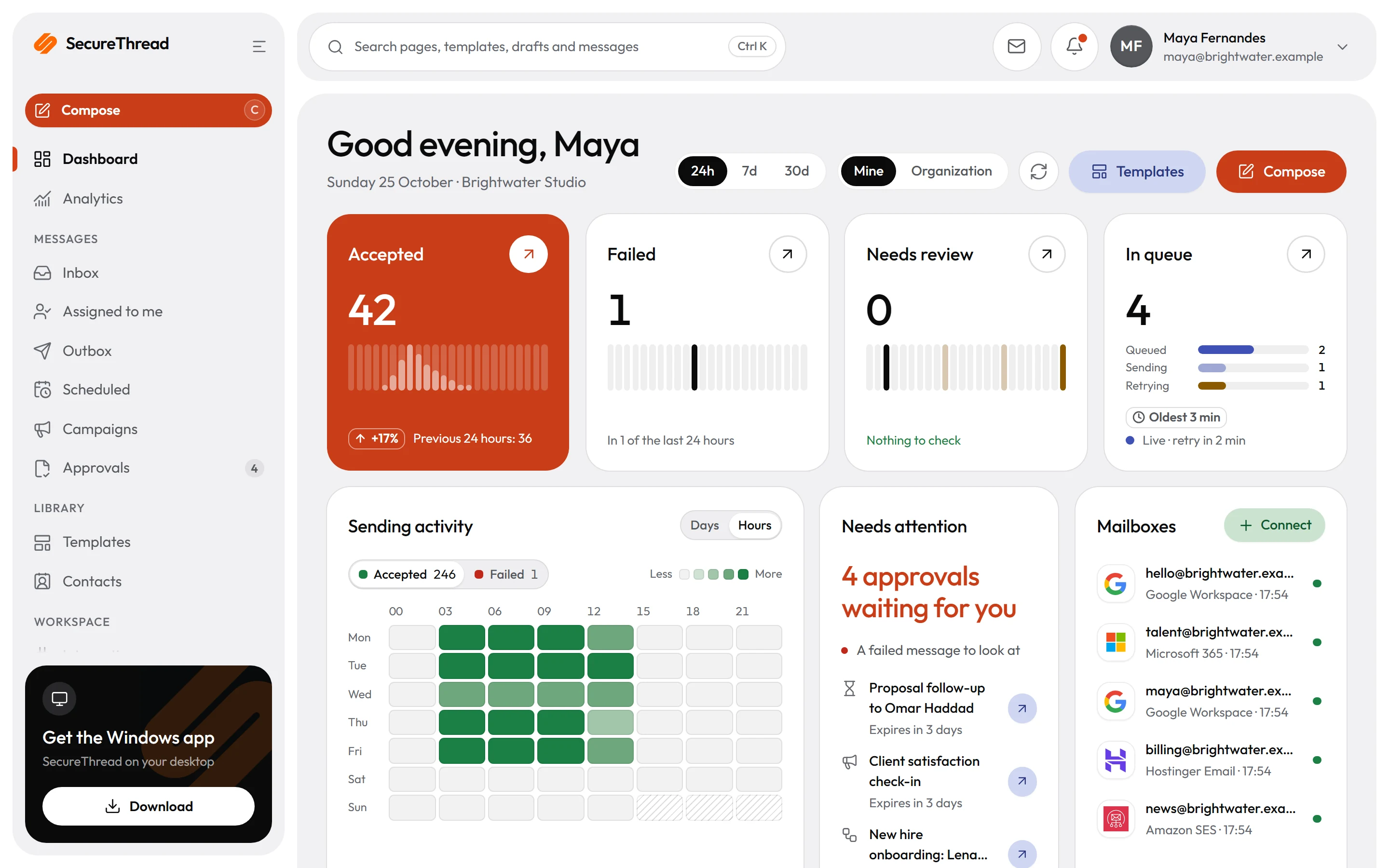
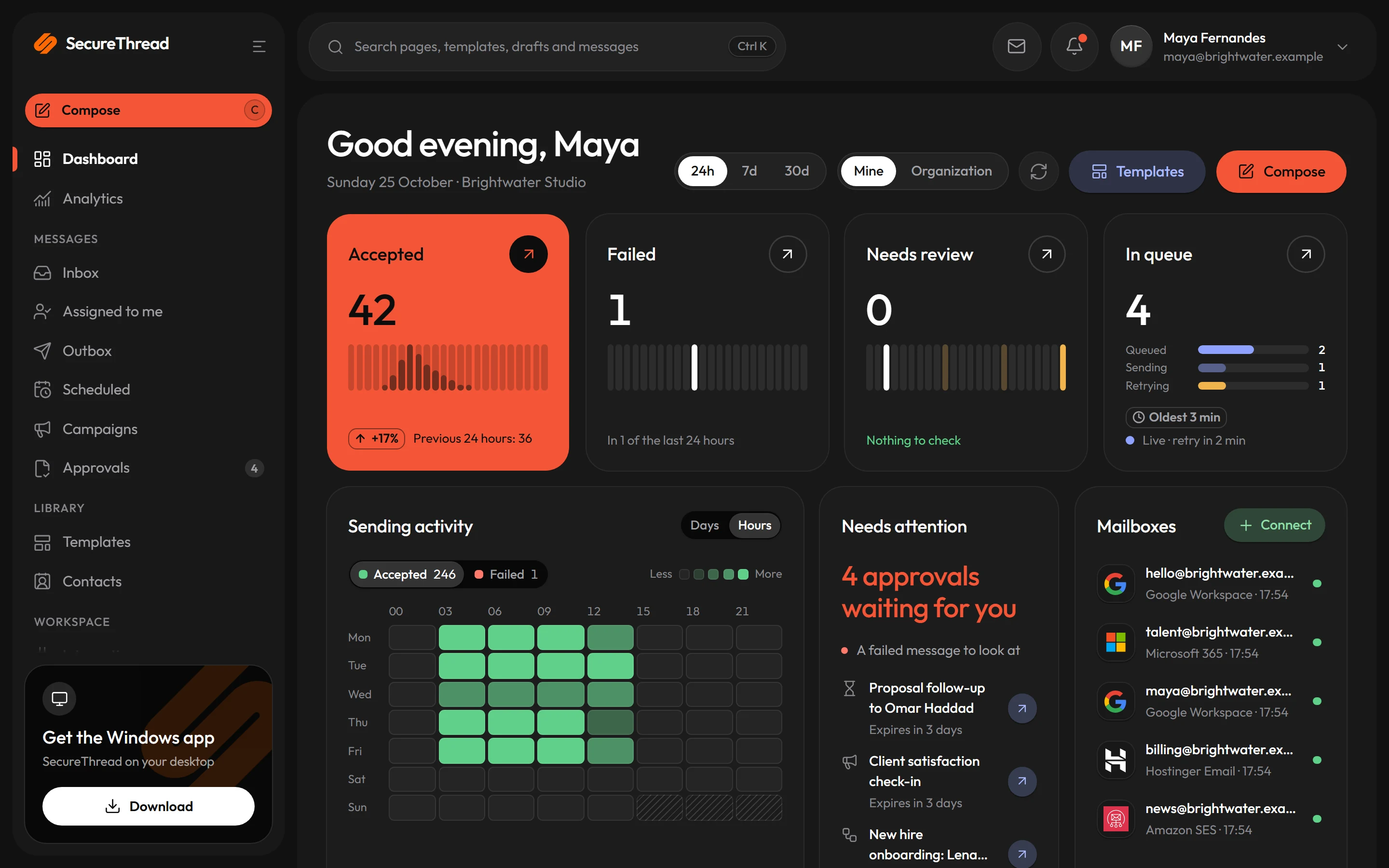
After your first sign-in, the setup checklist lists seven steps. Each step links to the screen where it is done and names who can do it if that is not you.
Add your organization's details
Where
Who does it
Verify your sending domain
Where
Who does it
Connect a mailbox
Where
Who does it
Send yourself a test
Where
Who does it
Connect an AI assistant
Where
Who does it
Approve your assistant's first email
Where
Who does it
Invite your team
Where
Who does it
The sections below follow the same order.
3. Add your organization's details#
Open Administration › Organization. Fill in your website, your Contact email and your postal address. The contact email is the support address that recipients see. On the setup checklist this same field is labelled Support email. These details appear in the footer of every email you send.
4. Verify a sending domain#
New workspaces require a verified sending domain. Mail from a domain that is not verified is refused until its records check out.
- Open Administration › Sending domains and choose Add a domain.
- Enter the domain, for example
example.com. The DKIM selector is optional. Your sending provider gives you the selector. If you leave it empty, the usual selectors are tried. - Choose Add domain. While the domain is not verified, its card lists every DNS record to publish.
- Publish each record at your DNS host. Sending domains and DNS lists the records and the common DNS hosts.
- Choose Check now. When every record checks out, the status changes to Verified.
SecureThread checks a new domain every hour for seven days. A verified domain is checked every 12 hours. If a domain is still not verified after seven days, choose Check now to restart the hourly checks.
5. Connect a mailbox#
Open Workspace › Integrations. The mailbox options are grouped as follows.
- Sign in with your provider: Google or Microsoft sign-in on the provider's own page. SecureThread never sees your password.
- Business email: a mailbox on your organization's domain, signed in over TLS.
- Personal email: consumer mailboxes, usually with an app password from the account's security settings.
- Transactional email services and Transactional email APIs: one service credential sends for a whole domain. An administrator connects these and can share them.
- Other SMTP server: an SMTP server that an administrator has approved under Administration › Mailboxes › SMTP servers, with your organization's credentials for it.
Choose Connect on the card for your provider. Mail from your domain should go through a mailbox on that domain. A personal mailbox sends from its provider's domain, which your organization cannot verify. If a provider cannot be connected yet, its card says so and shows what is missing.
6. Send yourself a test#
Open Compose, open the send menu and choose Send test. SecureThread sends a short message to your own address. A test is complete when your mailbox provider accepts the message. Acceptance means the provider took responsibility for the message. It is not proof of arrival, so check your inbox.
7. Know the sandbox limits#
A new workspace starts in a sandbox. While the sandbox is on:
- mail goes only to people in your workspace and to recipients on your verified domains;
- the workspace sends at most 50 messages and 100 recipients in any rolling 24 hours;
- campaigns are not available.
Starting a paid plan lifts the sandbox, and SecureThread can also lift it. Bulk campaigns also wait until SecureThread has reviewed the workspace for them. Billing and plans explains plans.
8. Connect an AI assistant#
- An administrator turns AI assistants on. Open Administration › AI access and switch on AI assistants. The switch asks you to confirm. AI assistant access is off for every organization until an administrator turns it on.
- Open Workspace › Agents and choose New agent. Give the agent a name of 2 to 60 characters and choose its policy. A new agent starts with Every send needs approval.
- Open Workspace › AI assistants and follow the steps for your app. AI assistants (MCP) has the steps for each app.
- Back on the agent's page, assign one of your assistant connections to the agent.
9. Approve the first email#
Ask your assistant to prepare and send an email. The assistant does not send it directly. SecureThread holds the email as a send request, and the assistant gives you a link to it.
- Open the link. The request appears under AI access and is marked Waiting for you.
- Read the preview. It shows the recipients, the subject, the message and any attachments. What you approve is what is sent.
- Choose Approve and send, or choose Decline. Declining sends nothing.
- When your mailbox provider accepts the message, it appears in Messages › Outbox.
A send request expires 24 hours after the assistant asks for it. Expired and declined requests never send.
Next#
- Agents and approvals explains who may approve, how long approvals wait, and what an organization can allow to go out without approval.
- Troubleshooting lists the messages you may see when a send is refused.